Share a Saved Search
The Cityworks eURL add-on enables sharing of maps created through inspection, request, work order, and PLL case searches. This application generates a URL (web address) that can be used to show an event layer on another map outside of Cityworks.
If you are licensed for eURL, you can share saved searches with others. There are three ways to share a saved search. For an explanation of the saved search fields, see Select Search Panel Fields.
|
|
 PREREQUISITES:
 By Map Link
- Open the list of saved searches. See Select Search Panel Fields for more information.
- Click Map. A new browser tab opens that contains a URL that can be shared.
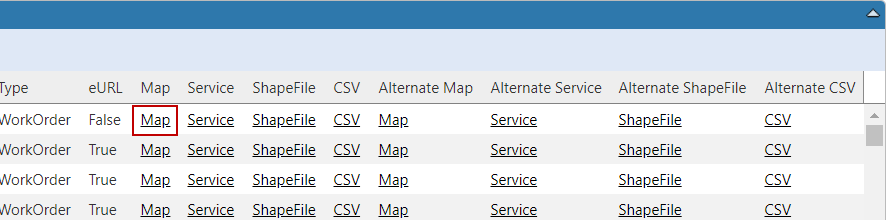
 NOTE: The Map link option uses the domain-level map that is defined for public use in Designer under GIS > Services. See Add Services to a Service Definition in the Designer for 15.8 Guide for more information.
- Send the map link to others.
 IMPORTANT: If your Cityworks site is internal, only users on your internal network are able to use the URL generated. If your site is external, then users outside your network are able to use the URL to view the map.
By CSV File
- Open the list of saved searches. See Select Search Panel Fields for more information.
- Click CSV. This generates a zipped .csv file containing the saved search data. Latitude and longitude fields are included in this file.

- Share the .csv file or upload it to other applications.
NOTE: The CSV downloads the event layer (eURL) data as a file that can be used in Esri applications. Esri requires that date fields be in numeric formats, so this file is not intended for import into Microsoft Excel. There is a specific link provided on the search results screen to download an Excel formatted version of the saved search. Use the Data menu on the search results screen to navigate to the export options for Excel. See Export Search Results for more information.
By eURL
- Open the list of saved searches. See Select Search Panel Fields for more information.
- Click ShapeFile. This generates a zipped shapefile. The data is projected to Lat/Long when it is added to the shapefile.
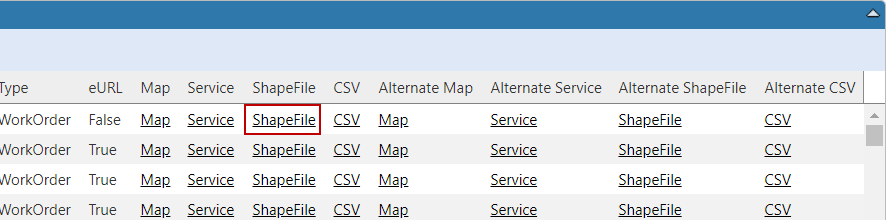
IMPORTANT: Shapefile names can only be up to 10 characters long. To deal with this limitation, the SearchDisplayFields.xml file now has a field named ShapeFileField for each SearchDisplayField available from eURL. This field is a 10-character-or-less name for each field. Users can change these by overriding them in a custom XML file, but they must be 10 characters or less and also unique. If they are not, the shapefile is not properly generated.