Add Saved Searches to the Mobile Inbox
While administrators can define saved searches to display in the inbox of the mobile apps for their entire domain, the Mobile section allows individual users to manage their inboxes. Any saved searches added for the entire domain by the administrator display here, but users can remove any that they do not wish to display in their inbox. Likewise, users can add saved searches that they want displayed in their individual inboxes. If a user adds any saved searches on the User Preferences page, the domain administrator can no longer add a saved search to their inbox, as the user settings override the domain settings. All saved searches must be cleared on the User Preferences page in order to get any saved searches added by the domain administrator again.
 NOTE: Administrators manage which saved searches are displayed for their entire domain in Preferences > Mobile. See
|
|
 PREREQUISITES:
- Open the user menu, which is found in the upper-right corner of the site.
- Select User Settings.
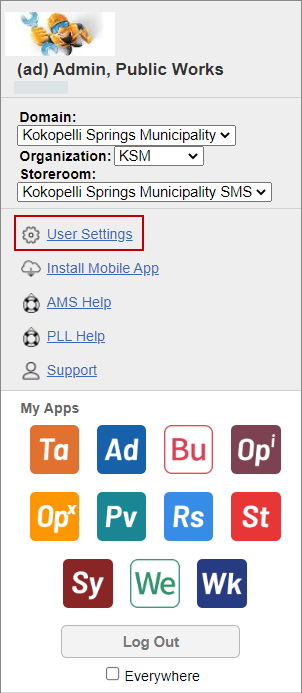

- Select Work Order, Service Request, Inspection, or Permit to view a list of saved searches.

- Select a saved search from the list.
 TIP: You can use <Shift +
-
- To remove a saved search, select the desired saved search and
NOTE:

